Maintenance
The Maintenance tool in Xolmis provides a set of utilities designed to keep your system and database running smoothly. It centralizes several "mini-tools" that help with backup, optimization, diagnostics, and cleanup tasks, ensuring long-term stability and performance.
Info
The mini-tools available in the Maintenance section are designed to keep your system running smoothly. You do not need to execute them manually under normal circumstances. Most of these tasks are performed automatically, either on a periodic schedule or triggered after other operations. Manual execution should only be considered in specific cases, such as persistent or recurring errors, or noticeable slowdown in system performance. By default, Xolmis ensures that maintenance routines are handled in the background, minimizing the need for user intervention.
To access the Maintenance tool, go to File → Maintenance in the main menu.
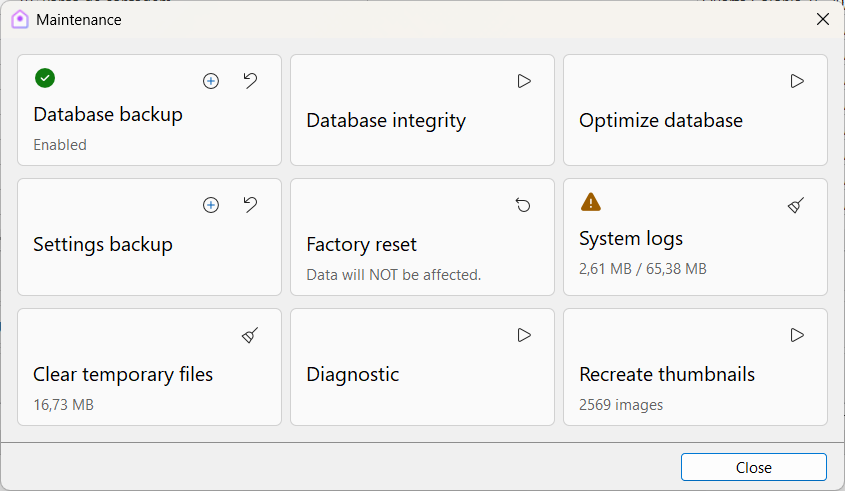
Available mini-tools
Warning
Some mini-tools must be used with caution. When an action could affect the user data, it is recommended to create a backup first.
Database backup
- Shows if the automatic backup is enabled and if it is on schedule.
- Create a backup of the current database.
- Restore a database from a previously saved backup.
- Recommended for regular use to prevent data loss.
Database integrity
- Runs a consistency check on the database.
- Identifies potential corruption or invalid records.
- Useful after large imports or unexpected system interruptions.
Optimize database
- Reorganizes and compacts the database.
- Improves performance and reduces file size.
- Recommended periodically, especially after heavy editing or deletions.
Settings backup
- Save all system settings to a file.
- Restore settings from a backup file.
- Ensures that preferences and configurations can be recovered easily.
Factory defaults
- Resets system settings to their original defaults.
- Does not affect data stored in the database.
- Useful for troubleshooting or starting fresh with configurations.
System logs
- Clears accumulated system logs.
- Helps free space and remove outdated diagnostic information.
- Recommended after resolving issues or performing maintenance.
Clear temporary files
- Deletes temporary files created during system operations.
- Frees disk space and can improve performance.
- Safe to use regularly.
Diagnostic
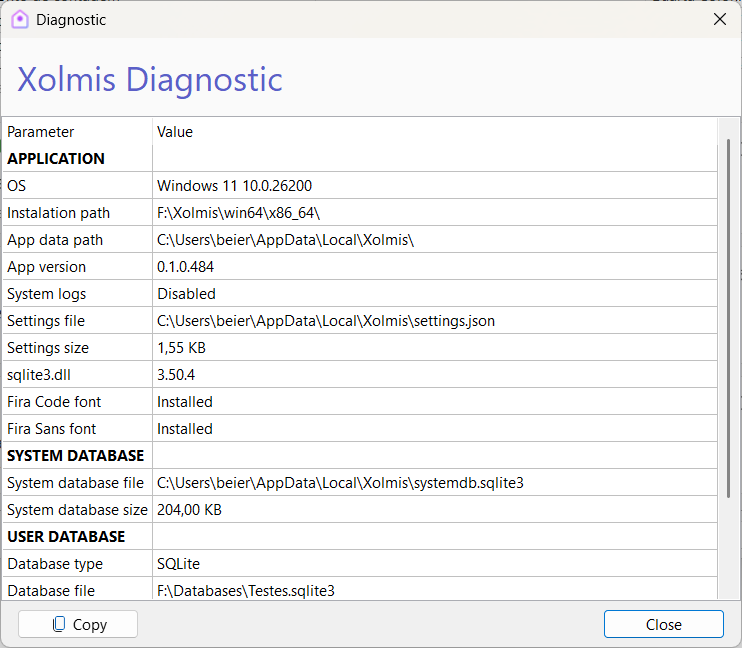
- Generates a diagnostic report of the system.
- Includes information about configuration and potential issues.
- Useful for technical support or troubleshooting.
Best practices
- Schedule backups: Perform regular database and settings backups to avoid data loss. Set the periodic automatic backup in Settings.
- Run integrity tests: Check database consistency after imports or major edits.
- Optimize periodically: Keep the database compact and efficient.
- Use diagnostics for support: Share reports with technical support when troubleshooting.
- Clean temporary files and logs: Maintain performance and free storage space.
By using the Maintenance tool, researchers ensure that Xolmis remains stable, efficient, and reliable, even with large datasets and long-term projects.