Exporting data
One of the main goals of Xolmis is to serve as a reliable data repository, where information can be stored, organized, and later transferred for use in other applications. Exporting data allows you to share results, perform external analyses, or integrate Xolmis records with other software tools such as spreadsheets, statistical packages, or GIS systems.
Note
To export data, the user must have permission for that. See details in Users.
Quick export
The Quick export feature is designed to make exporting data fast and flexible. To use it, first search and filter the data according to your needs. Once the dataset is ready, click on the share button. This will open the export dialog:
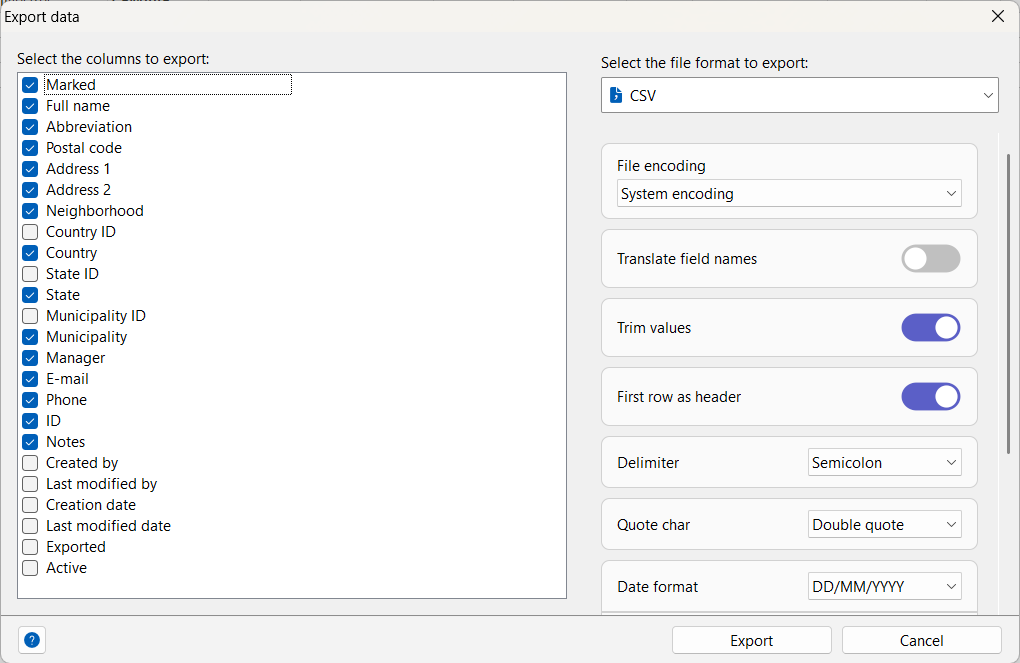
Selecting columns
Select the columns you want to export. This step ensures that only relevant data is included in the output file, reducing file size and simplifying analysis.
Tip
Right click the columns list for options to mark or unmark all and invert selection.
Choosing the format
On the top right of the dialog, select the file format to which you want to export. Xolmis supports multiple formats, each suited to different use cases:
CSV
Best for: spreadsheets, statistical software, and simple tabular data exchange. CSV files are lightweight and widely supported, but they do not preserve formatting or complex structures.
Example:
id,name,species
1,John Doe,Turdus rufiventris
2,Jane Smith,Tyrannus melancholicus
JSON
Best for: structured data exchange, integration with APIs, and modern applications. JSON is human-readable and machine-friendly, making it ideal for interoperability with web services and programming environments.
Example:
{
    "id": 1,
    "name": "John Doe",
    "species": "Turdus rufiventris"
}
XML
Best for: interoperability with legacy systems and applications that require strict schema definitions. XML is verbose but highly standardized, often used in enterprise environments and older data pipelines.
Example:
<record>
    <id>1</id>
    <name>John Doe</name>
    <species>Turdus rufiventris</species>
</record>
ODS and XLSX
Best for: spreadsheet documents with formatting, formulas, and multiple sheets. ODS (OpenDocument Spreadsheet) is an open standard, while XLSX is the Microsoft Excel format. Both are alternatives to CSV when richer spreadsheet features are needed.
Tips for choosing the right format
- Use CSV if you need simplicity and compatibility with most tools.
- Use JSON if you plan to integrate with APIs or modern applications.
- Use XML if you need compatibility with legacy systems or strict schema validation.
- Use ODS/XLSX if you want to preserve spreadsheet features like formatting, formulas, or multiple tabs.
Configuring options
Each format has specific configurable options, which allows you to define:
- Translate field names: use translated field names to name columns in the exported file.
- Delimiter: comma, semicolon, tab, etc.
- Quote char: character to use when a value is quoted.
- Decimal separator: dot or comma.
- First row as header: whether to export column names.
- Sheet or tab: which sheet of the spreadsheet use to export data.
- Indentation: number of spaces used to format the exported file content.
- Root key name: name of the root key containing the records.
- Record key name: name of the key containig the record data.
Finalizing the export
When everything is ready, click the Export button. You will be prompted to choose a filename and location. The file will then be saved using the defined settings. The exported file can be opened in external applications for further processing, visualization, or sharing.
Tip
In Settings, enable Open files after export to automatically open the exported file with your system’s default application immediately after it is saved.
Best practices
- Filter before exporting: Use search and filters to reduce the dataset to only what you need.
- Choose the right format: Select CSV for spreadsheets, JSON for structured data, and XML for interoperability.
- Check encoding: Always use UTF-8 when working with international datasets to avoid character issues.
- Document exports: Keep track of exported files, especially when sharing with collaborators.
- Use column selection: Export only the necessary fields to simplify downstream analysis.
Relation to other modules
Exporting data is available across multiple modules in Xolmis.
By using the export feature, you ensure that data collected and managed in Xolmis can be easily integrated into broader research workflows.