Print data
Most modules in Xolmis include a print button that opens a menu with options to generate printable reports. This functionality allows researchers to produce hard copies or digital files (PDF) of their data, useful for documentation, sharing, or archiving.
Note
To print data, the user must have permission for that. See details in Users.
Print grid
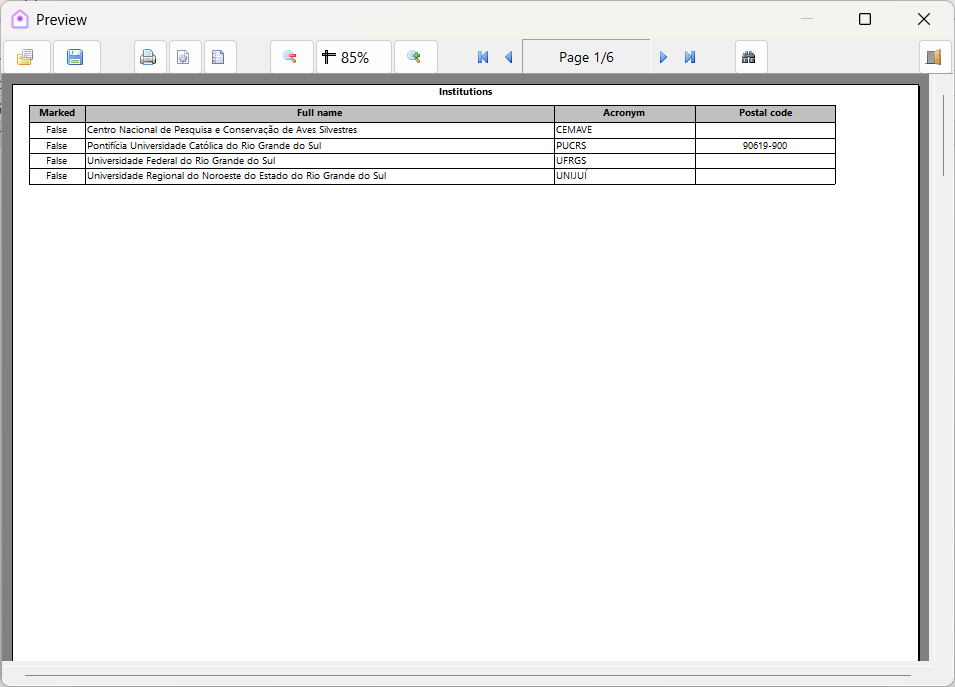
The Print grid option generates a report with the exact same layout as the module’s data grid. To use it:
- Click the print button in the module toolbar.
- Select Print grid.
- A preview window will open, where you can send the report to the printer or save it to a file.
Limitation
As many modules contain numerous columns, a single record may span multiple pages in the generated report. This can result in a large number of pages if the dataset is extensive.
Print preview
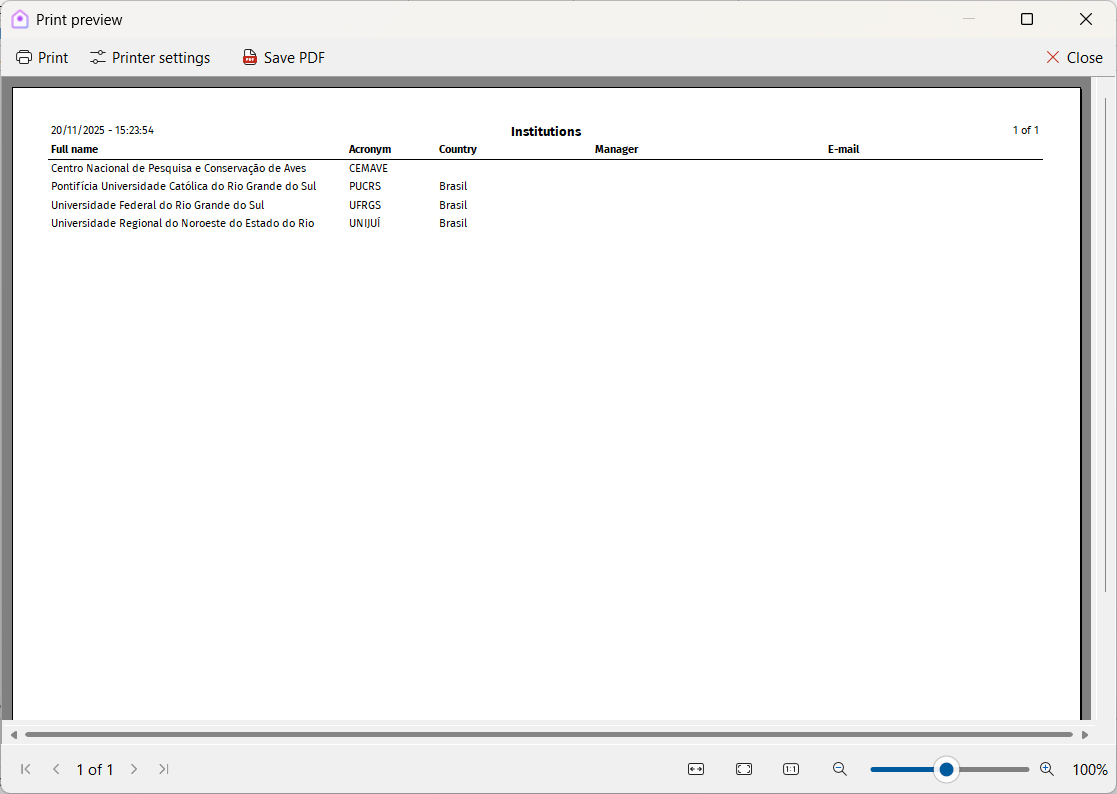
Other reports use the Xolmis print preview window, which offers more flexibility and a standardized interface. Features include:
- Zoom in/out – Adjust the view of the report.
- Page navigation – Move through pages using the controls in the bottom status bar.
- Toolbar options – Send the report to the printer, configure printer settings, or save the report as PDF.
Send to printer
Click the Print button to send the report to a printer. This opens the print dialog, where you can:
- Select the printer to use.
- Define which pages to print.
- Set the number of copies.
Export PDF
Click the Save PDF button to export the report as a PDF file. This opens the save dialog, where you can:
- Choose the destination folder.
- Define the file name.
Exporting to PDF is recommended for sharing reports digitally or archiving them in project documentation.
Best practices
- Choose the right option: Use Print grid for quick exports of raw data, and other options for more polished reports.
- Limit columns when possible: Hide unnecessary columns before printing to reduce page count.
- Use PDF for sharing: Export reports as PDF to ensure compatibility across devices and operating systems.
- Check printer settings: Configure page size, orientation, and margins to avoid formatting issues.
- Archive reports: Save important reports as PDF to maintain a permanent record of your data.
Relation to other modules
The print functionality is available across most modules, including:
- Sightings and Captures – Generate reports of field observations and banding data.
- Nests and Eggs – Print breeding records for analysis or submission to institutions.
- Projects and Permits – Produce administrative reports for management or compliance.
- Institutions and Researchers – Export lists for collaboration or documentation.
By using the print tools in Xolmis, researchers can easily transform digital records into shareable, standardized reports, supporting both scientific communication and administrative needs.