Images
The Images feature allows researchers to attach photographs and other visual files to records in selected modules. Images are essential for documenting taxa, fieldwork, specimens, nests, eggs, and other ecological evidence. By linking images directly to records, Xolmis ensures that multimedia data is organized, traceable, and available for future analysis.
Open the images side panel by clicking the image icon on the right toolbar (if available in the module).
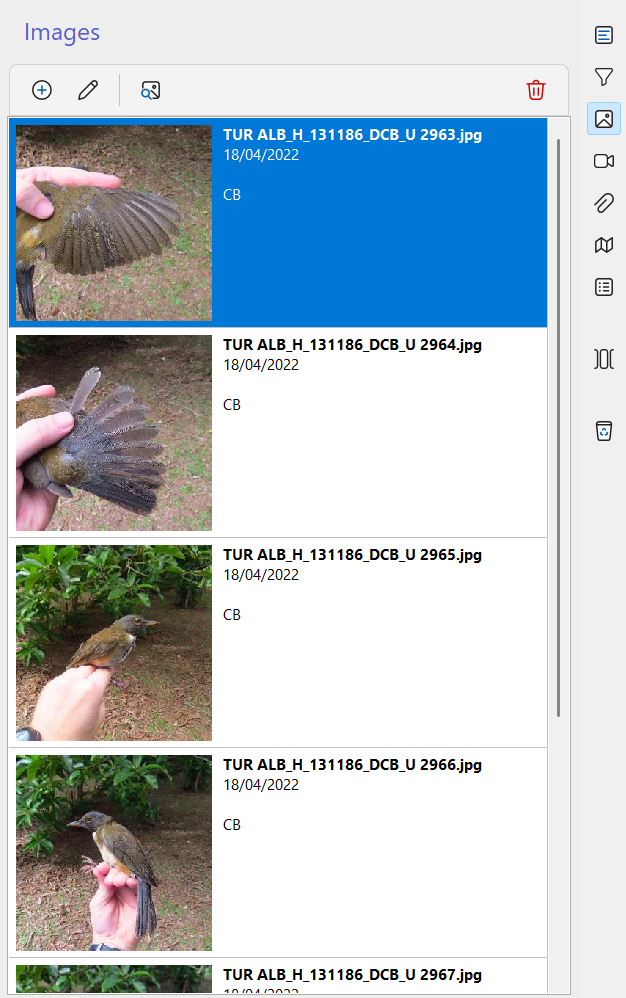
Toolbar
| Icon | Button | Function |
|---|---|---|
| Add image | Insert new images from files | |
| View and edit image info | Edit the selected image info | |
| View image | Opens the selected image in the image viewer | |
| Delete image | Delete the selected image |
Adding images
You can add images in two ways:
- Using the add button
- Click the Add button at the top toolbar of the images side panel.
- Select one or more image files to attach to the current record.
- Click Open to confirm.
- The system will show the progress of adding the images.
-
Drag and drop
- Drag image files from your file explorer.
- Drop them directly into the images side panel.
- The system will show the progress of adding the images.
-
Edit metadata
- If metadata is present (e.g., creation date, GPS coordinates), it will be automatically extracted.
- Link the images to records using the dialog that opened.
- Other information must be edited manually afterwards.
This flexibility allows quick integration of field photographs into the database.
Editing image info
To edit image information:
- Select the image in the side panel.
- Click the Edit button in the toolbar.
- A dialog will open with editable fields.
| Field | Required | Description |
|---|---|---|
| Subtitle | Short description of the image | |
| Author | Person who created the image | |
| Image date | Yes | Date when the image was taken |
| Image time | Time when the image was taken | |
| Image type | Category of the image (see below) | |
| Locality | Site where the image was taken | |
| Coordinates precision | Precision of the geographical coordinates | |
| Longitude | Longitude coordinate of the image | |
| Latitude | Latitude coordinate of the image | |
| Taxon | Taxon represented in the image | |
| License type | Type of image license | |
| License year | Year the image was licensed | |
| License owner | Rights holder of the image | |
| License notes | Additional notes about licensing | |
| License URL | Link to the license text |
Image types
Images can be classified into categories that describe their content:
- Bird in hand – flank, belly, back, wing spread, tail spread, head, feet/bands
- Free bird – perched, flying, swimming, foraging/feeding, copulating, building nest, displaying, in nest, vocalizing, agonistic behavior
- Dead bird
- Flock
- Nest
- Egg
- Nestling
- Ectoparasite
- Footprint
- Feather
- Feces
- Food
- Environment
- Fieldwork
- Team
These categories help standardize image classification and facilitate searches and reports.
Coordinates precision
- Exact – Coordinates are precise, generally obtained using GPS or similar devices.
- Approximated – Coordinates are less precise, usually estimated from maps.
- Reference coordinate – Coordinates are very imprecise, representing a central point of a larger area (e.g., farmyard, municipality center).
License types
Licensing ensures proper use and sharing of images:
- Copyright – All rights reserved.
- CC BY – Creative Commons with attribution.
- CC BY-SA – Creative Commons with attribution and derivatives under the same license.
- CC BY-ND – Creative Commons with attribution and no derivatives.
- CC BY-NC – Creative Commons with attribution and no commercial use.
- CC BY-NC-SA – Creative Commons with attribution, no commercial use, and derivatives under the same license.
- CC BY-NC-ND – Creative Commons with attribution, no commercial use, and no derivatives.
- CC0 – Public domain (Creative Commons).
- Commercial – Custom license with contractual terms.
Image viewer
The Image viewer allows you to preview and interact with images attached to records in Xolmis. It provides several options to adjust visualization, perform quick edits, and manage images directly from the system.
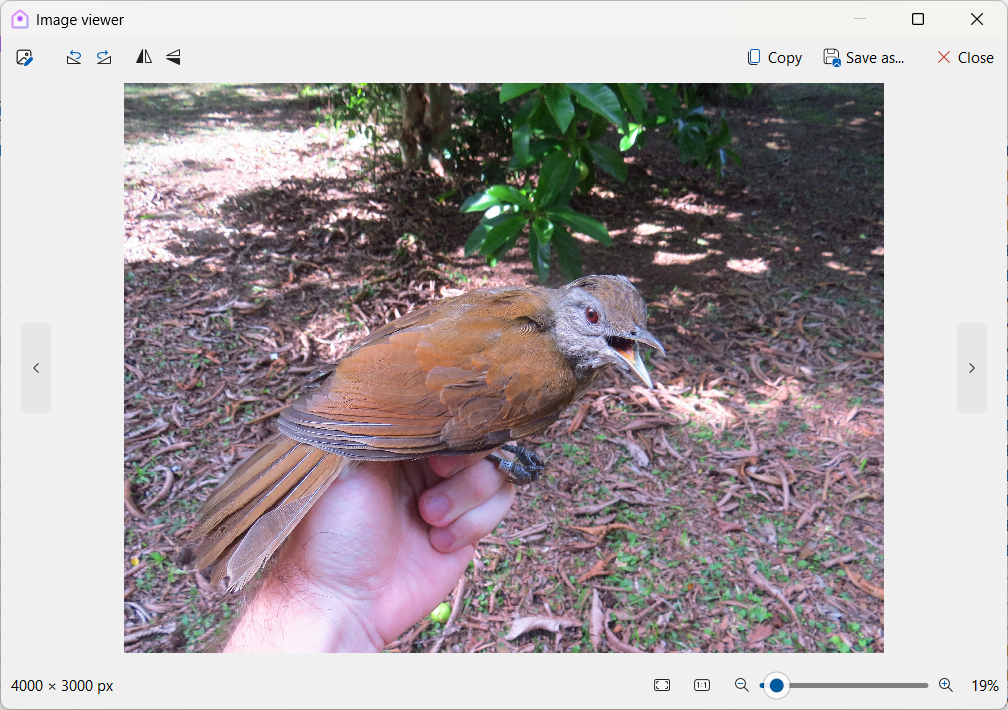
Available options
| Icon | Button | Function |
|---|---|---|
| Zoom in | Increases the zoom level of the image. | |
| Zoom out | Decreases the zoom level of the image. | |
| Zoom to fit | Zoom level to fit image to window size. | |
| Zoom to real size | Zoom level to image real size. | |
| Open in default editor | Opens the image in the default image editor of your operating system. | |
| Rotate right | Rotates the image clockwise. | |
| Rotate left | Rotates the image counterclockwise. | |
| Flip horizontally | Flips the image horizontally. | |
| Flip vertically | Flips the image vertically. | |
| Copy to clipboard | Copies the image to the clipboard for use in other applications. | |
| Save as | Saves the image to a chosen location with a new filename. | |
| Next image | Advances to the next image in the record. | |
| Previous image | Returns to the previous image in the record. |
How it works
- The viewer opens when you select an image from a record.
- You can navigate between multiple images attached to the same record using the Next and Previous buttons.
- Quick actions like Rotate and Flip are applied only to the visualization, not to the stored file, unless you explicitly save the image again.
- The Open in default editor option allows you to perform advanced edits using external software.
Best practices
- Set the images location first: Avoid broken links by configuring the storage path before adding files.
- Use descriptive subtitles: Helps identify images quickly in lists and reports.
- Record metadata in the field: Note taxon, locality, and context during image capture to minimize manual editing later.
- Respect licensing: Always define license type and owner to ensure compliance with copyright.
- Link to taxa and locality: Strengthens the ecological value of images by connecting them to species and habitats.
- Standardize image types: Use the predefined categories to ensure consistency across datasets.
Relation to other modules
Images can be attached in several modules:
- Sightings – Document observed individuals.
- Captures – Record morphological details of captured birds.
- Individuals – Associate images with specific banded birds.
- Nests and Eggs – Document breeding evidence and nest structures.
- Surveys – Attach supporting photographs.
By managing images in Xolmis, researchers integrate visual evidence into ornithological studies, enriching datasets with multimedia content and supporting long-term ecological monitoring.